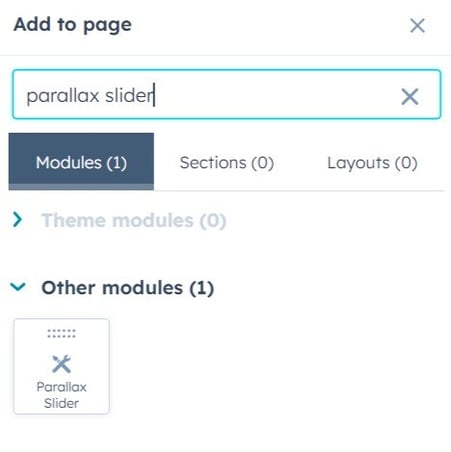
1. Add Parallax Slider to your section
2. Now you can add your slides for the Parallax Slider Module. Just click at "+ add" hypertext.

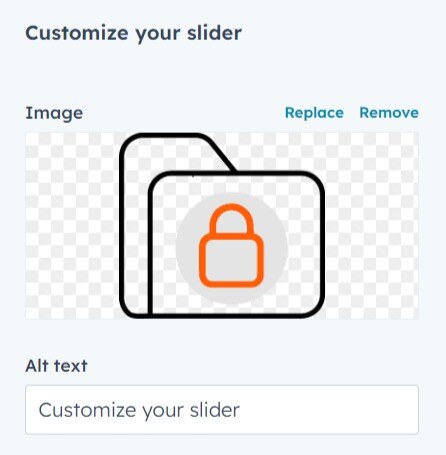
3. Within each slide, you will find first, the option of the image that will be inside the slide. Next, you have a field to designate the alternative text for the image.
4. Then you will find the fields to set the title and the text that will accompany the slider.

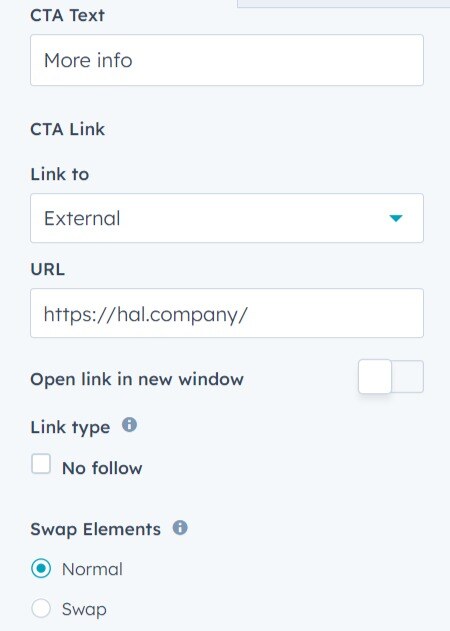
5. Finally, we can assign a text to the CTA, a link with all the options and the option to sort the content of each slide, whether the image is required on the left (normal) or on the right (swap).
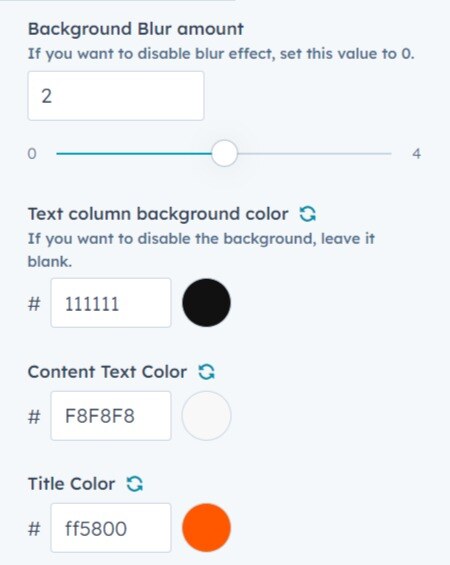
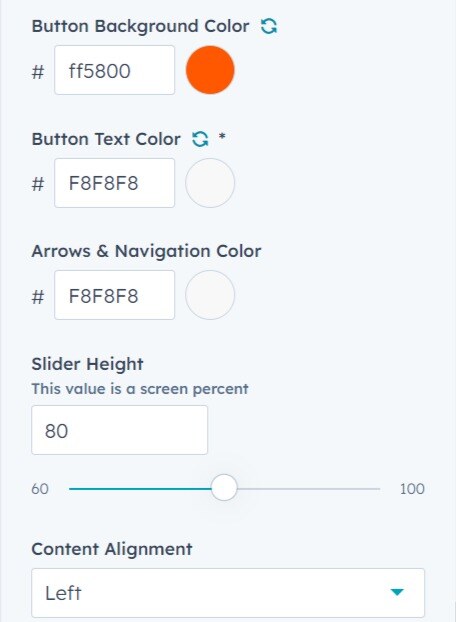
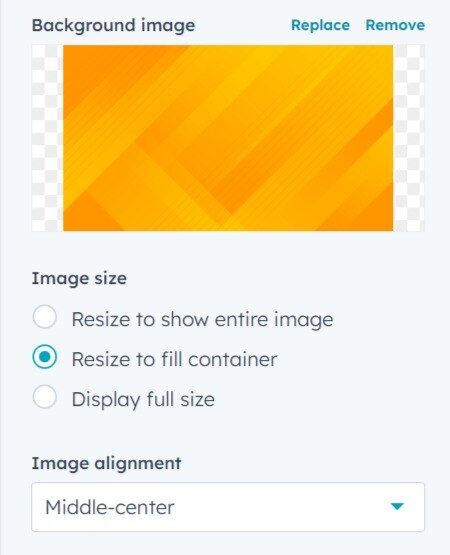
6. In the styles tab you will find many aspects to edit. At first, you should set the background image. Then you can choose in which position the image of each slide will be placed.
7. The slider has the ability to have a moderate and configurable blur within the first point. Then you can set the colors of the text container, the color of the content text, the color of the title, the color of the CTA and the color of its text, the color used for the arrows and navigation, the height of the slider on the screen and the alignment of the text contained in the slides content box.