
1. Add new section and setup
This is very important for the module to work properly.
You need to create a one-column section and remove all margins. Besides that, you must give a full width to the section. All these settings can be done from the styles tab, selecting the new section.


Don't forget to choose the background color for the section
2. Add DIVIDERS by HAL Company
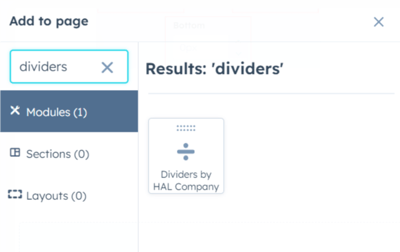
In the "add modules" section you must search for DIVIDERS and then drag and drop the module into the new section we have made in the previous step.
3. Select design and color
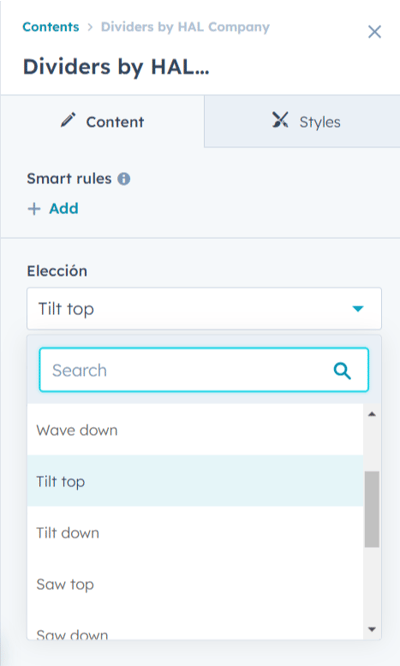
When you insert the module, you will be able to select which design you want to use and the color of the divider.
1. Setup the section in which you're going to embed the divider
This is very important for the module to work properly.
The section where the divider will go must be full width and the margins must be zero.
Don't forget to choose the background color for the section
2. Add DIVIDERS by HAL Company
In the "add modules" section you must search for DIVIDERS and then drag and drop the module into the top or the bottom of section in use.
3. Select design and color
When you insert the module, you will be able to select which design you want to use and the color of the divider.
