Configuration
1. Add Custom Cards Animated to your section
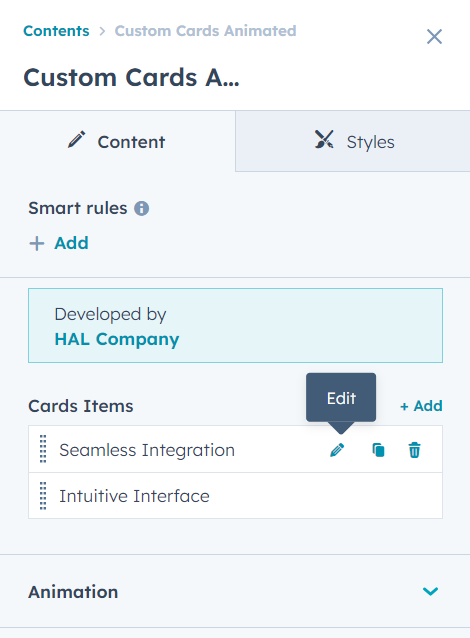
2. By default in the Content Tab, you had 2 Cards created. To edit the 1st card in the module configuration clicking "Edit icon" button. (Item 8 for Animation Setup)
3. Within the edition of each Custom Card, you will find different sections to edit. You can also navigate between the different Custom Cards.
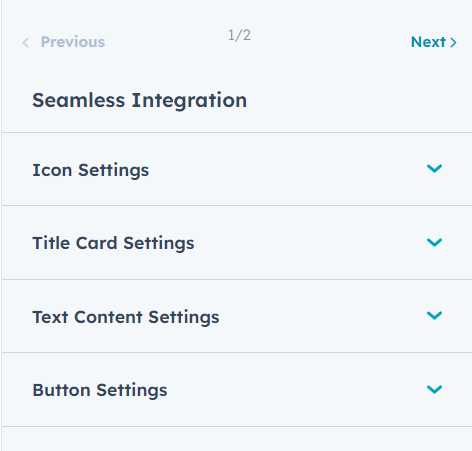
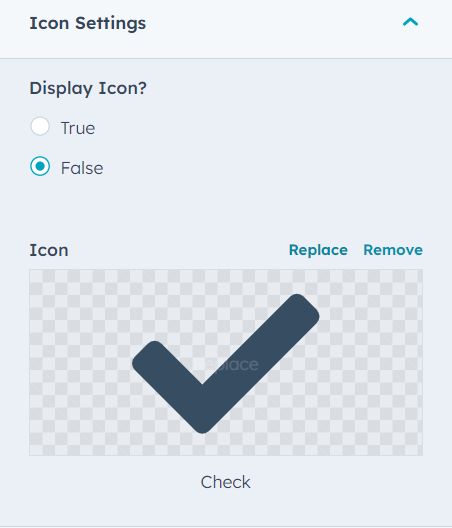
4. The first of the sections to configure is Icon Setting. There you will be able to choose if it will have an accompanying icon. And once you have chosen the option to show it, you will be able to select which icon will accompany your Custom Card.
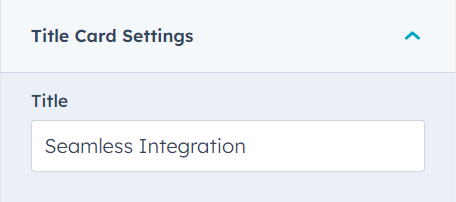
5. In the following content section, you will be able to assign a title to your Custom Card.
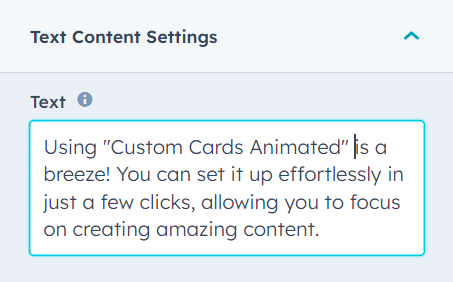
6. Now it is time to load the textual content that our Custom Card will contain.
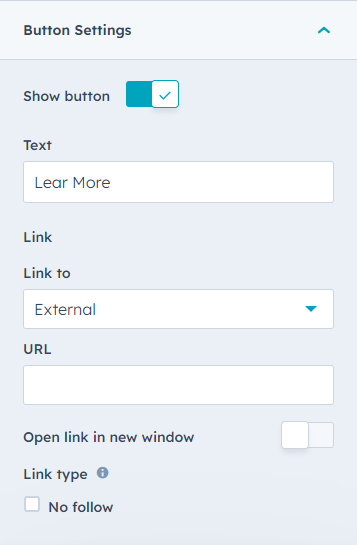
7. In the last section, you can add a CTA to your Custom Card, and assign the text, link and other options that refer to a CTA button.
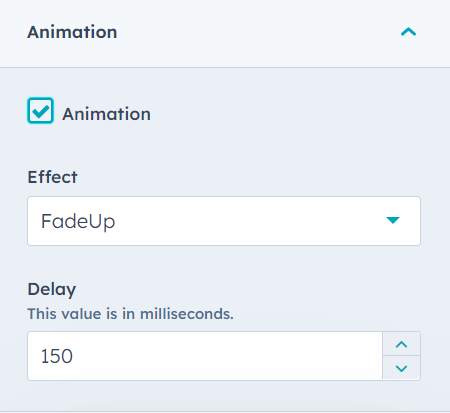
8. To be able to configure the animation of our Custom Cards, we must enable the option inside the Animation section.

9. When the Animation option is enabled, you will find a list of preset animations so that you can give more action to your Custom Cards and generate a delay between the appearance of each card.
The options we offer are: Fade Up, Fade Down, Fade Left, Fade Right, Flip Up, Flip Down, Flip Left and Flip Right. If you want the Cards to animate progressively, just increase the delay value, or, if you want them to animate at the same time, reduce the delay value.
Configuration
1. When we go to the Styles tab, we can see different options to adjust.
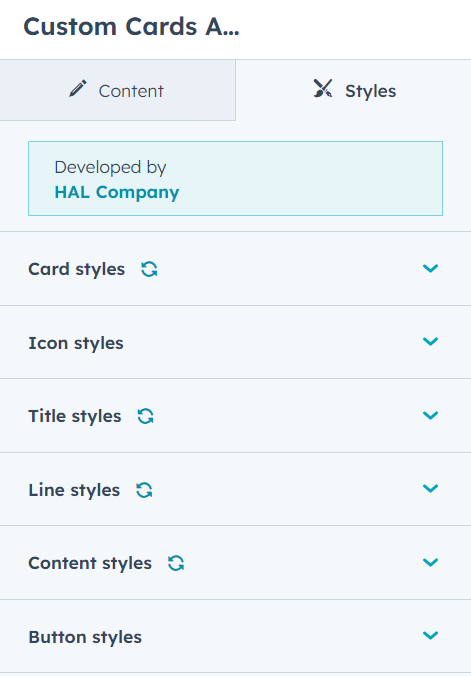
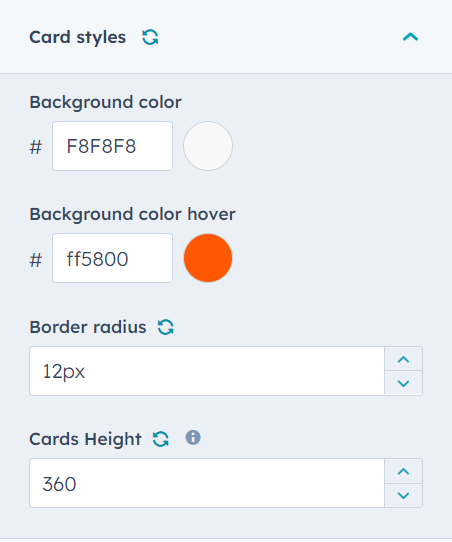
2. When we deploy the first option "Card Styles" we will find that we can change the background color of the Custom Cards group, the background color that the cards will have when we hover over them, adjust the border radius and the height that all the cards must have.
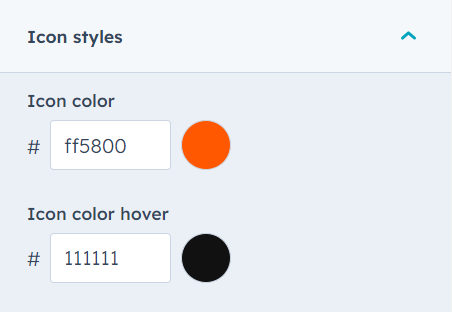
3. In the next section, we can adjust the color of the icon (if you have assigned it to be visible) and the color of the icon when hovering over the Card.
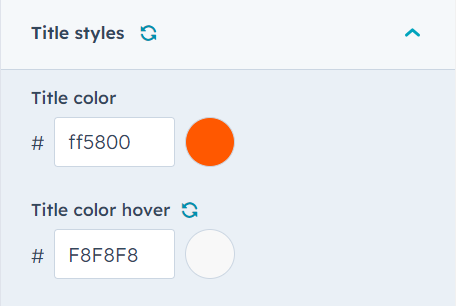
4. You can then assign a color to the title and a color to the title when the effect is applied by hovering over each Custom Card.
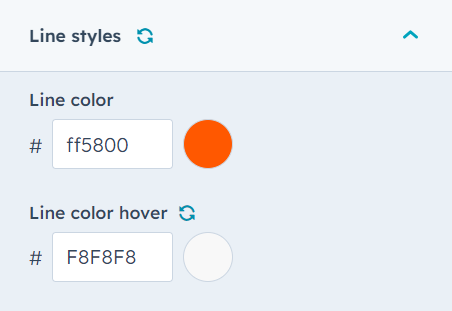
5. As in the previous option, here we can assign the colors that the line of each card will have.
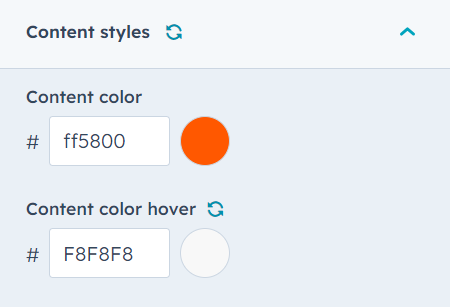
6. Now it is time to apply the style for the content of the card.
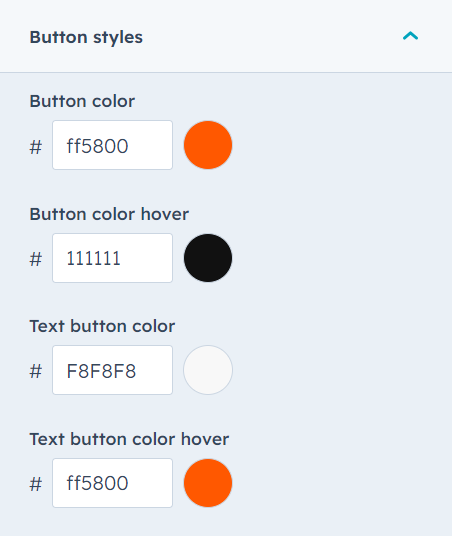
7. In the last section, you can style the CTA to your Custom Card, and assign colors for the text, the button.